
Article Contents
Colligo Intelligence - Quick Filing
Quick File Suggested Filing allows the Colligo Intelligence engine to offer suggestions to end users to speed up the process of saving new content into their Microsoft 365 Teams, SharePoint and OneDrive locations.
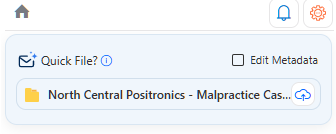
There are two types of Intelligence in the system. The first is our Quick File functionality. With this functionality, Colligo learns how and where you file certain types of content and makes a Suggestion as to where a selected email should be saved.
The user can simply click the cloud upload icon next to the quick file suggestion to make 1 click filing a reality.
If you do not want this feature, then you can disable it using this setting in the Colligo Admin Console:

The Colligo365 cloud admin console allows your organizational administrator to change settings relating to Suggested Filing and how they behave for the end users in your organization.
- Authenticate with the Colligo365 Admin Console using your enterprise account with Colligo admin permissions as normal.
If your organization has an active Colligo enterprise license, you will have optional access to the Colligo365 cloud admin console. If you need access or additional help, then please contact your Colligo account representative or Colligo support from our website.
Suggestive filing Settings
Additionally, Colligo has functionality to add custom email subject rules so that users are prompted to remember locations for things like emails containing invoice numbers in the subject.
As an Administrator of the organization, you can choose to enable or disable this from the settings in the Admin Console along with configuring the token you wish to use for matching emails. These tokens are used to allow end users to record the location where items were previously saved and re-use these locations more quickly next time.
Subject token based filing
The administrator of your organization can choose to allow employees to file faster by recognising certain tokens from the email subject line which can then be used to save and suggest filing locations.
Select the option for 'Subject Line Identifier' to enable this feature and enter your JavaScript regular expression in the parsing rule box (examples below).
Administrator of the organization can check the box next to 'Subject Line Identifier'

Once the Subject token option is enabled, a new menu is shown where an administrator can enter subject line parsing rules.
These rules are based on the JavaScript regular expression language.
Testing the expression
Colligo offers the ability to quickly check the expression you are entering will work as expected.
If you select the 'tick' box next to the parsing rule box, then you can validate it against a test email string you enter
- Enter your expression
- Enter the test subject line
- Click 'Match' to see what data is extracted - this will be the token that is used to record saved filing locations for this token
If you edit the expression in this window for testing, you will need to copy it yourself back to the main screen.

Regular expression examples
If an email has subject: "order no: 123922 from super9" and we need to extract the order no from this email, we can use a simple regex
order no: [0-9]{6}In this example, we are allowing numerical digits [0-9] and then we are ensuring that we have {6} of them next to each other.
We could ensure that this string is surrounded by whitespace by using several optional expressions, the simplest being actually typing the spaces.
Whitespace can also be specified using a control entry like: \s, so we could ensure it has whitespace and is not 6 digits as part of a longer string or word
order no:\s[0-9]{6}\sIf an email has subject: "order no: AZ123922 from super9" and we need to extract the order no from this email, we can use a simple regex
[A-Z][A-Z][0-9]{6}In this example we have now an order number that has two A-Z characters as possible entries, so we can use the [A-Z] to specify one character. For two, we could use [A-Z][A-Z]. This can be shortened to:
[A-Z]{2}[0-9]{6}
This just uses the {2} to duplicate the previous block twice
There are also many other operators which can be used and these are documented on the internet such as \b which can be used to specify that the item is found at the beginning or end of word, for example:
\b[0-9]{6}\sHowever, if the email subject were something more complex such as "chase:123343 order no: 123922 from super9" then this would cause problems as the first set of 6 numerical digits will also match.
It is important to ensure that when specifying your regex you make it as 'tight' as possible to ensure that matches are not mistaken in other emails that may be received.
So, if we extend this example, we can make our regex more specific by including static string text.
order no: ([0-9]{6})
This is using the same match as the first example, but what we are saying here is now to ensure that when we match the 6 numerical digits, we are also checking to make sure that we have chosen the block of digits that has "order no: " before it.
Please note, certain non standard javascript operations may not be supported on all platforms, some older versions of Outlook and Mobile devices do not support the look ahead/behind operations.

?=  is for positive look ahead (this must exist after the match)
?!  is for negative look ahead (this must not exist after the match)
?<= is for positive look behind (this must exist before the match)
?<! is for negative look behind (this must not exist before the match)
JavaScript Regex expressions are well documented on the internet and many examples, generation tools and use cases can be found. Colligo recommend testing in the expression match to ensure it works correctly with Colligo before submitting in the admin UI. Here are some additional reference sites ( Colligo accepts no responsibility for the content or actions of these third party sites ).

https://regex101.com/
https://regexr.com/
https://developer.mozilla.org/en-US/docs/Web/JavaScript/Guide/Regular_Expressions/Cheatsheet
https://www.debuggex.com/cheatsheet/regex/javascript
User defined Identifier
At this moment, the functionality is not operational. This is reserved for future feature enhancement.
Updated 27th November 2026. Core conversation, sender and domain intelligence is moved to core product 'Quick File' functionality. No need to manually remember.