

About
This article outlines the steps required to clear the Outlook cache to use the Colligo Email Manager for MS365 application. It applies to any Add-In for the MS 365 Applications and is not specific to Colligo tools.
If the add-in fails to load, times out, or presents failure messages then it could be because previous versions of the application manifests, pages or scripts are cached and not being re-loaded.
Terminology
Throughout this article, Colligo Email Manager for MS365 will be referred to as Colligo Email Manager.
Supported Outlook Clients
Colligo Email Manager supports the following Outlook clients. The instructions below explain how to clear the cache for each supported client.
- Windows Outlook Classic Client
- Windows New Outlook Client
- Outlook on the Web (OWA)
- Outlook for MacOS
- Outlook for iPad
- Outlook for Android
Windows Outlook Classic Client
Follow the steps below to clear the cache for the Windows Outlook Classic client :
- Exit Microsoft Outlook.
- If Outlook.exe is still running in the background, end Outlook.exe from Task Manager.
- Clear the Outlook RoamCache by deleting all the files from the following location - %localappdata%\Microsoft\Outlook\RoamCache
- Clear the Office cache by deleting all the files and folders from following location -
%localappdata%\Microsoft\Office\16.0\Wef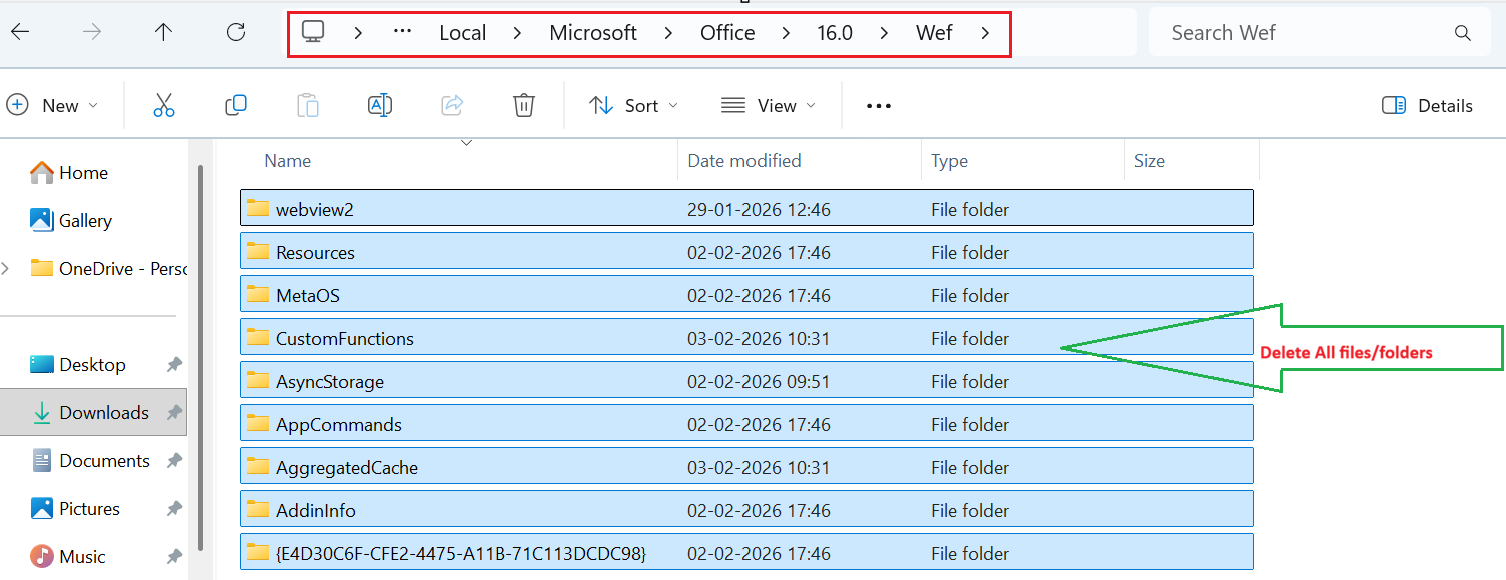
- Open Outlook and launch Colligo Email Manager. The application will download a fresh copy of all required files.
Windows New Outlook Client
You might see the below error while sending the emails if you have already subscribed to Colligo Email Manager.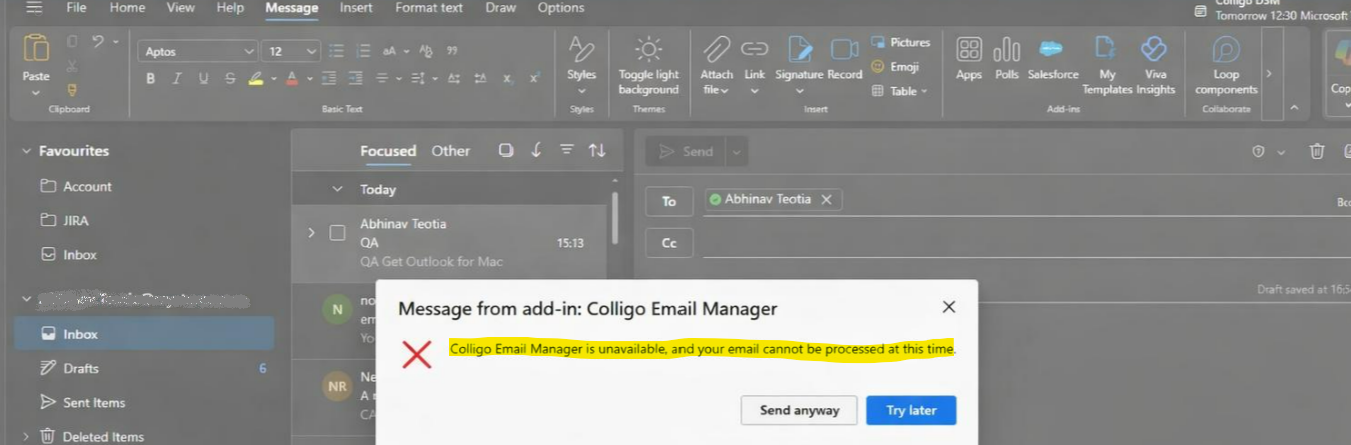
Please follow the steps below to clear cache in the New Outlook client for Windows.
1. Exit the Outlook app.
2. Open Command prompt or Windows Terminal
3. Run the following command to launch Outlook with Edge Developer Tools.
olk.exe --devtools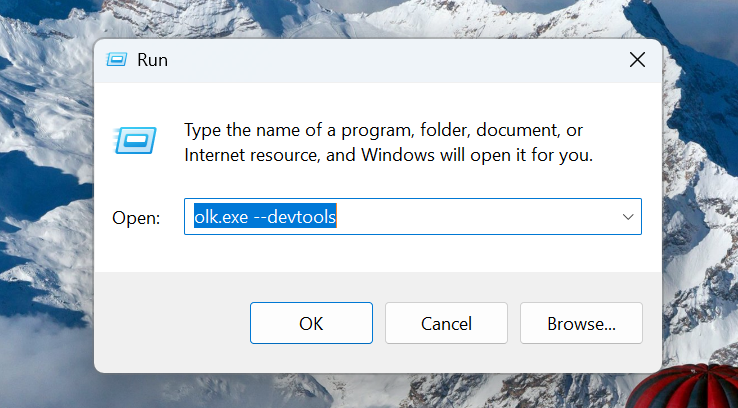
4. In Developer Tools, select Network tab and enable Disable cache. 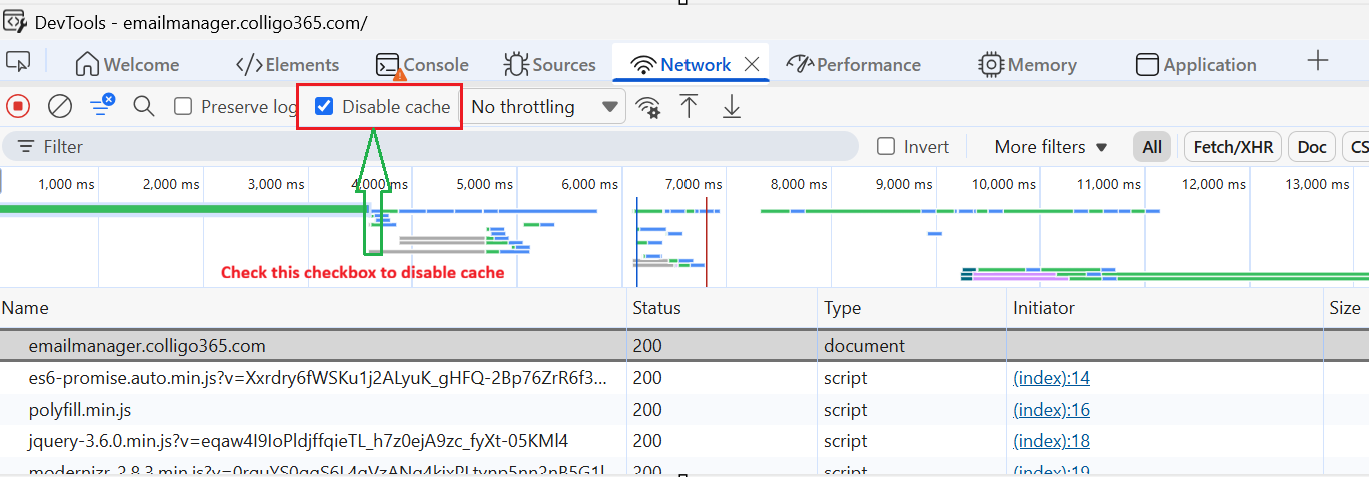
5. In Outlook, open the Colligo Email Manager add-in. It will now run with a cleared cache.
6. Close both Developer Tools and Outlook, then restart Outlook to continue using the application normally.
Click Here to view a short video showing how to disable the cache.
Outlook on the Web (OWA)
In OWA, Outlook on the web runs in a browser, so the browser cache must be cleared.
Option 1: Clear Cache using a Hard Refresh
1. Open Outlook on the web and launch Colligo Email Manager add-in.
2. With the add‑in pane visible, perform a hard refresh:
a. Edge / Chrome (Windows): Ctrl + F5 or Ctrl + Shift + R.
b. Safari (Mac): Option + Command + R (Develop menu must be enabled).
Option 2: Clear Browsing Cache Manually
1. Open browser Settings (for example, in Edge: Settings > Privacy, search, and services).
2. Select Clear browsing data/Delete browsing data.
3. Choose Cached images and files, and optionally site data for your Outlook domain. 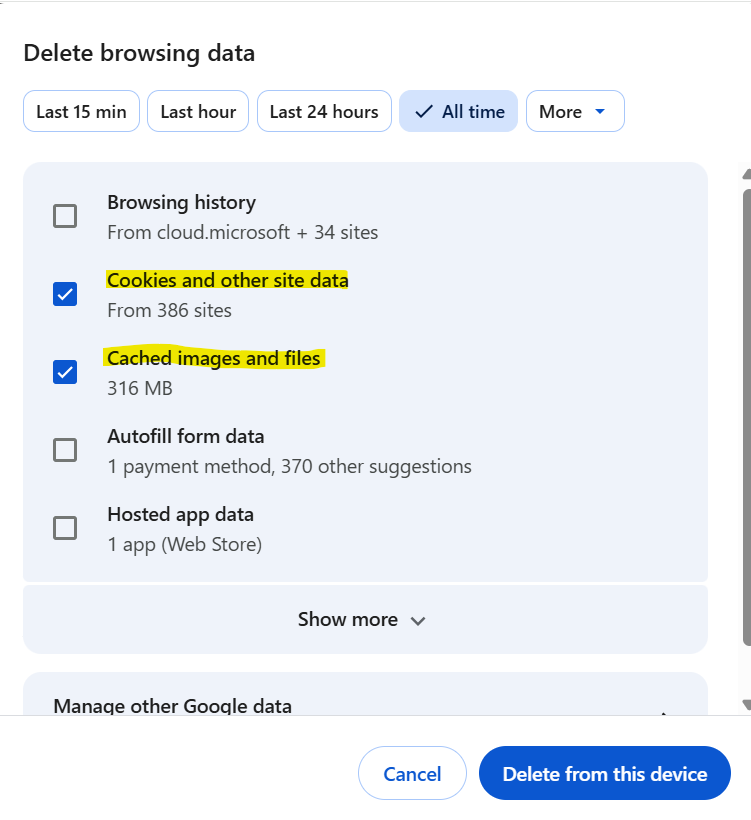
4. Clear the data, reload Outlook on the web, and open the Colligo Email Manager add‑in again.
Outlook On Mac
Outlook for macOS stores add-in cache data inside sandboxed container folder under your user Library.
Quick force-refresh
1. Open the Colligo Email Manager pane in Outlook.
2. Press Shift + Command + R to force reload the Colligo Email manager add-in.
Clear Outlook cache Folder
1. Quit the Outlook app. (Outlook -> Quit outlook or Command+Q)
2. Open Finder, Select Go from the menu bar, hold Option and choose Library.
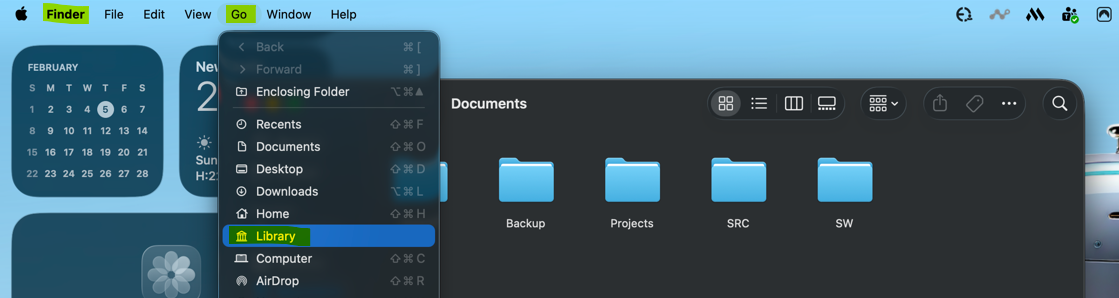
3. Navigate to ~/Library/Containers/com.microsoft.Outlook/Data/Library/Caches
4. Find out the folders containing the WebCache or Webkit in their names and move them to Trash.
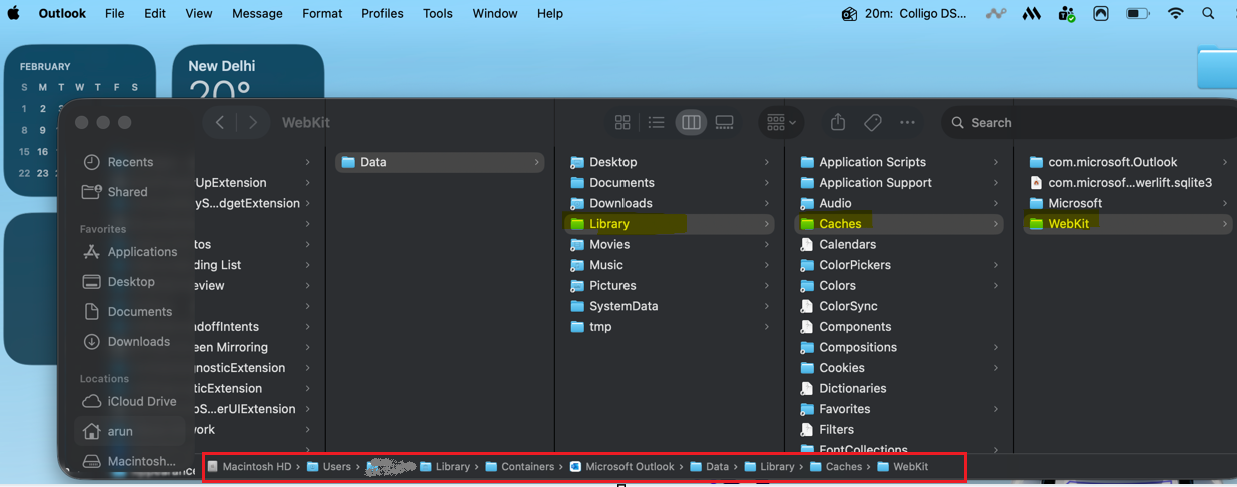
5. Empty the Trash.
6. Restart the Outlook and Open Colligo Email Manager, it will reload the latest files.
Outlook for iPad
You can clear Outlook cache from the iPad device by following below steps
1. Navigate to iPad Settings.
2. Select General -> iPad Storage. 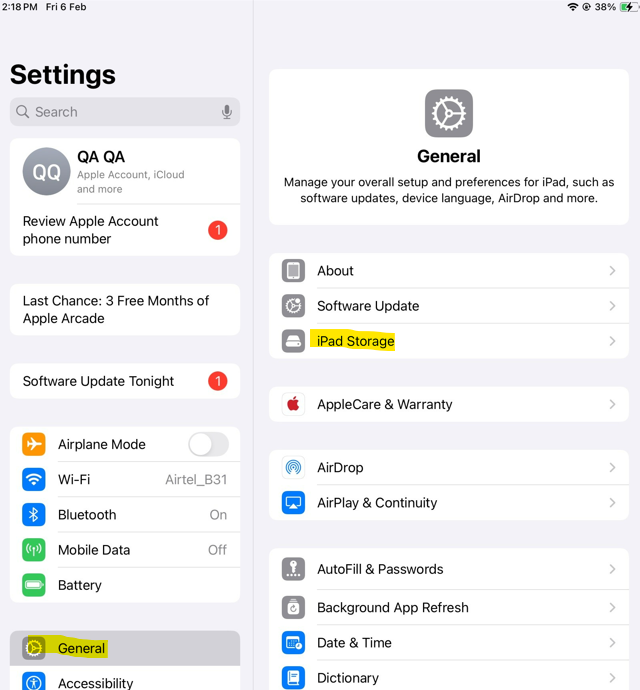
3. Locate and tap Outlook App.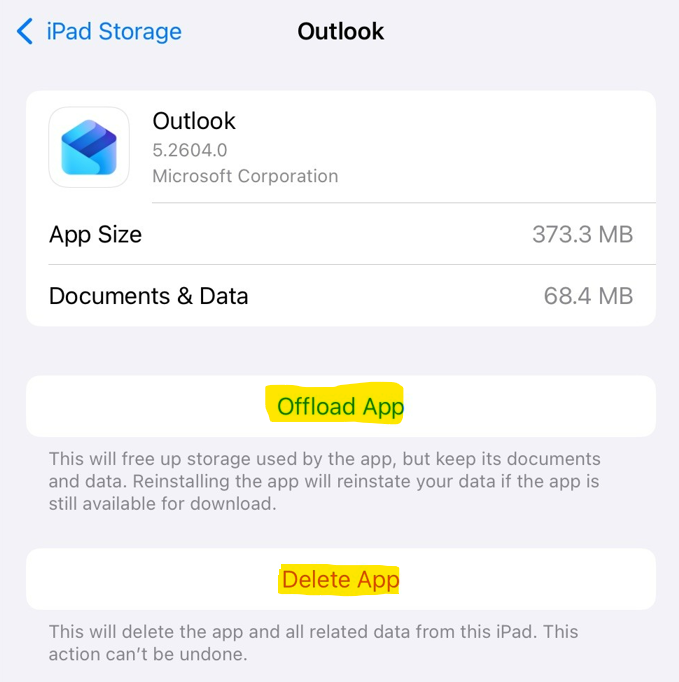
4. Choose one of the following options :
Offload App - Retains user data and account information while clearing cached files.
Or Delete App - Removes all app data and cache, allowing a fresh reinstall.
5. Re-install Outlook App from the App Store if deleted.
Android Outlook Client
You can clear Outlook cache from the Android device by following below steps.
1. Open Settings on your Android phone.
2. Go to the Apps or Apps & Notifications.
3. Scroll and Select Outlook App.
4. Tap Storage or Storage & Cache.
5. Tap Clear cache.
6. Re-open Outlook App.
7. Optional : If still not cleared you can clear data as well by Clear Tapping Clear data. But you need to sign-in again to resync all the emails.